Product Updates
Highlight Studio Release: Voice Enhance, SRT subtitles, and a refreshed look
Cleaner audio with one toggle, portable subtitles that round-trip through any editor, and a warmer gold accent palette. This is a polish release that also closes the door on a long list of bugs people have been hitting — including the dreaded "my mic recorded at half speed."
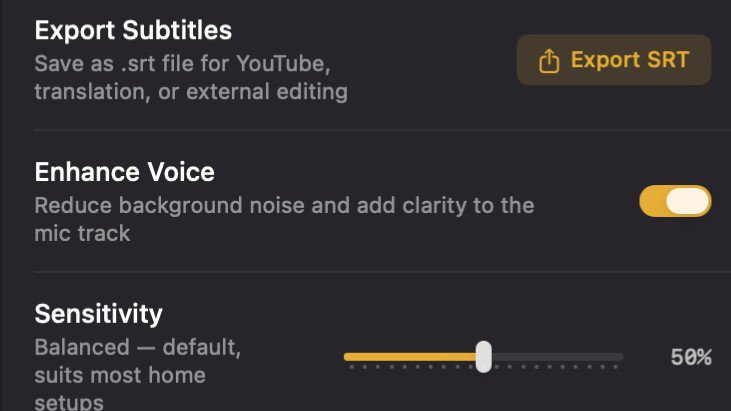
This is a polish release. Not a stack of new buttons — a step-up in how the things you already do every day feel.
The headliners: one toggle that makes your microphone sound a level closer to studio quality, a subtitle round-trip that lets you edit captions anywhere and bring them back, and a refreshed canvas that finally lets your content take the visual lead instead of the editor chrome.
Then there's the long list of bugs — the frozen Cam Link, the Trust mic that recorded at half-speed, the trim that left a 25-second black gap, the delete that wiped the entire camera track. Most of these came from logs people sent in. Thank you. Keep them coming.
Enhance Voice — your mic, but better
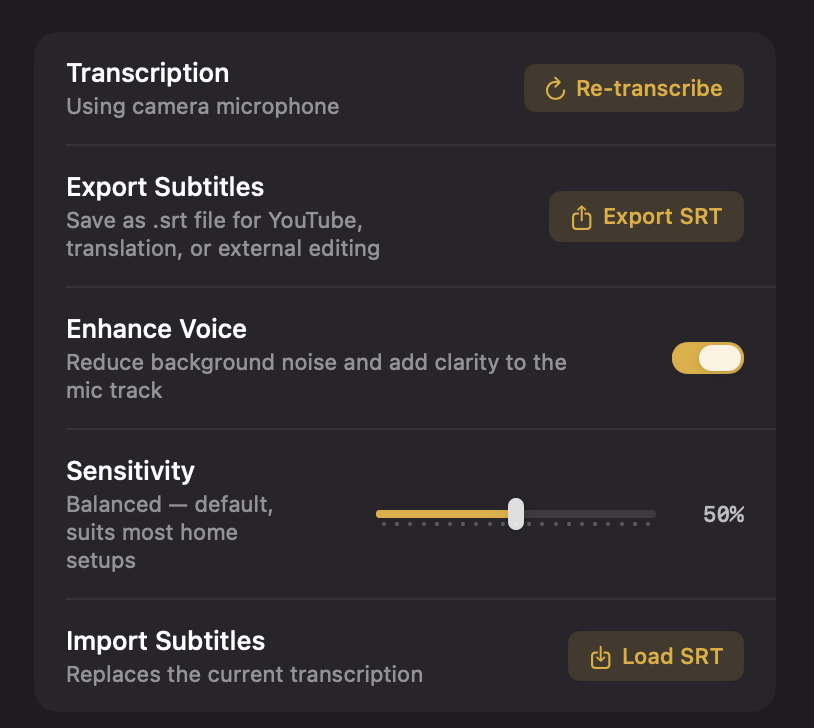
Open any project, switch to the Subtitles panel, flip the new Enhance Voice toggle. A short background render runs, and from that moment on — in preview, in export, in the transcription — the mic sounds noticeably cleaner.
What's happening under the hood:
A high-pass filter cuts off everything below 100 Hz. That's where computer fans, AC noise, building rumble, and the bass thumps of breath into a close mic live.
A small lift at 3 kHz adds presence — the consonant detail that makes voice sound forward rather than buried.
A low-pass at 14 kHz shaves off circuit hiss above the speech range.
A proper noise gate — with hysteresis so it doesn't chatter, and smooth ramps so consonants aren't chopped — silences the room tone between words.
The gate is tunable. A Sensitivity slider below the toggle goes from 0 (gentle — kills only true silence) to 100 (aggressive — closes during whispers). Default is 50%, which is right for most home setups. Drag it up if you record next to a noisy AC unit, drag it down if you're in a treated studio.
Most importantly: your original mic file stays on disk untouched. The enhanced track is a sibling file. Turn the feature off and the raw mic is back instantly. Turn it on and the cleaned-up version is what plays and exports.
SRT export, SRT import — your captions, anywhere
Once you've transcribed a recording, you can now hit Export SRT in the Subtitles panel and get a standards-compliant subtitle file out the door. The filename defaults to match your recording, so the sidecar is obviously paired with the video.
What you can do with it:
Upload to YouTube. Studio → Subtitles → Upload File → pick the .srt. Done. YouTube even uses caption text for search ranking, so this helps discoverability.
Send to a translator. They edit text in any tool, send it back as SRT.
Edit timing externally. Aegisub, Subtitle Edit, or a plain text editor. Save the file.
Bring it back into Highlight Studio. Click Load SRT and the edited file replaces the project's transcription. Subtitle styling is preserved.
The parser tolerates the way real-world subtitle files vary — CRLF line endings, BOMs, missing cue numbers, dot-or-comma millisecond separators — so almost any .srt or .vtt you'll find on the internet will load cleanly.
A warmer, more confident look
The whole editor was blue-accented. Buttons, focus rings, tinted backgrounds, the default canvas gradient — all sitting in the cool blue family.
1.1 swaps that for a warm gold palette. Rich saturated gold in light mode, deeper bronze-gold in dark mode (so it reads as metallic gold rather than highlighter yellow). The toolbar lost its blue cast in dark mode and is now a clean near-black. The Welcome view picked up warm cream / warm umber backgrounds instead of the old bluish ones.
The default video canvas background is now Studio Charcoal — a subtle warm gradient between two close near-black tones. It's the visual equivalent of a studio backdrop: dark enough that gold accents pop, neutral enough that whatever video you're editing carries the visual weight instead of the bg.
Existing projects that had the old Cosmic Purple default auto-upgrade to Studio Charcoal on open. If you'd actually picked another gradient — Ocean Blue, Forest Green, anything — that selection is preserved.
Camera reliability — no more silent failures
USB capture cards have a habit of stalling mid-recording — the HDMI source sleeps, the device reports a format change, the driver hangs. The previous behavior was that we'd dutifully record 8 frames over 140 seconds and you'd find out at stop time, when the camera track was already frozen on the first frame.
Highlight Studio adds a frame-delivery watchdog: if no camera frame arrives for 3 seconds during an active recording, you see "Camera stopped sending video — recording will be frozen on the last frame" right there in the recording HUD. Plus a per-10-second frame-count heartbeat in the log so post-mortems are quick. Plus full observation of macOS-level capture errors and interruptions that used to vanish silently.
Bug fixes worth calling out
Stereo USB mics no longer record at half-speed. The Trust GXT 242, Elgato Wave, Blue Yeti and similar mics were producing files exactly twice as long as the recording, with audio at half speed. Forcing mono PCM at the capture pipeline (independent of the writer's mono channel count) fixes it.
Proxy hot-swap no longer pauses playback and jumps to 0. When the low-res preview proxy finishes generating in the background — which often happens right when you finally hit play — the swap now preserves position and play state.
The cursor traces correctly during zoom-and-pan. The post-production cursor overlay used to drift away from the real cursor in zoomed previews, because it pivoted around the container center rather than the video's center. Fixed.
"Start Recording" is properly disabled when no source is selected on the current tab, even if a stale source from a prior session is still set in state.
Can't accidentally clobber a recording in progress. Hitting record twice in a row no longer silently throws away the take you were already making.
What to try first
Open a recording that has microphone audio. Switch to the Subtitles panel. Flip Enhance Voice on. Play it back. Drag the sensitivity slider.
Generate subtitles, then click Export SRT. Open the file in TextEdit. Try Load SRT to bring it back.
Open any project that had the old purple background — it should be Studio Charcoal now.
If anything looks or sounds off, send a log via the in-app support form. Most of what shipped in this release came directly from logs people sent for the previous one.
Thanks for the support and the patient bug reports.
release-notes · voice-enhance · srt-export · noise-reduction · subtitle-roundtrip · gold-theme