Guides
Highlight Studio: The Native Mac Screen Recorder With a Built-In Video Editor
Highlight Studio is a native macOS screen recorder and video editor built on Metal. AI smart zoom, device frames, multi-track timeline, and GIF export in one app.
If you have ever recorded your Mac screen and opened the file to find a tiny cursor, a jittery mouse, and thirty seconds of dead air at the start, you know how much polishing a simple recording usually needs. Most workflows split that polishing across three or four tools: QuickTime to record, iMovie or Premiere to trim, an online GIF converter to share, and a separate app for device mockups.
Highlight Studio handles all of it in one place.
What is Highlight Studio?
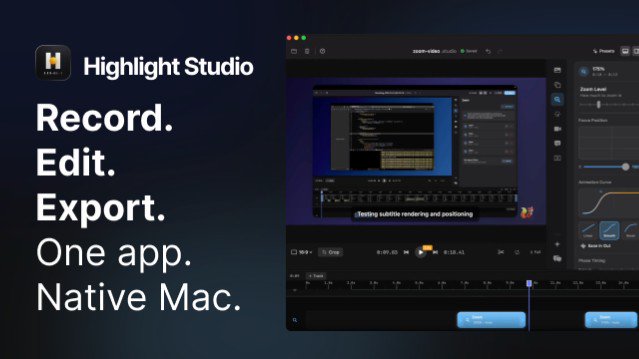
Highlight Studio is a screen recorder and video editor for Mac. You record your screen, your camera, and your audio. The app then runs your recording through an AI layer that adds smooth zoom animations on your clicks, smooths cursor jitter, suggests cuts based on facial expressions, and generates subtitles. You can refine everything on a real multi-track timeline and export to MP4, GIF, or a shareable embed link.
The app is built with SwiftUI and Apple's Metal framework. No Electron, no web wrappers, no cross-platform compromises. It weighs under 100 MB and runs at well below 2% CPU usage during recording, which means no fan noise and no thermal throttling, even on older Apple Silicon and Intel Macs.
Who Highlight Studio is for
Highlight Studio is built for anyone who creates video on a Mac and wants the result to look polished without spending hours in a video editor.
Indie developers and SaaS founders use it to record product demos for landing pages, X threads, and investor decks. Course creators use it for tutorials with branded intros and outros. Designers and product managers use it to file bug reports with annotated GIFs that drop straight into Linear, GitHub, or Notion. Mobile app makers use the device-frame feature to record their iPhone over USB and wrap the result in a pixel-perfect mockup. Social media creators use it to make vertical clips for Reels, Shorts, and TikTok.
It works for casual screen recording too. The free version handles trimming, splitting, and exporting in 720p with no credit card required.
The features that make Highlight Studio different
AI Smart Zoom
This is the feature most people notice first. While you record, Highlight Studio tracks your cursor position and click events. After you stop, an AI pass analyzes click clusters and mouse movement to generate zoom keyframes automatically at the moments that matter. Each zoom shows up as a draggable clip on the timeline, so you can resize, move, or delete any of them if you want manual control. The zoom animations use Metal-accelerated easing curves like ease-in-out, bounce, and spring, the kind of motion that usually requires After Effects.
Multi-Track Editor
The editor is a proper non-linear timeline, not a single-track trimming tool. Separate tracks for video, camera, audio, voice-overs, subtitles, and annotations. Each track has independent volume, visibility, and timing. You can speed-ramp clips between 0.25x and 2x with smooth easing, freeze a frame while audio continues, draw arrows and rectangles directly on the video, and blur sensitive content with privacy masks.
Device Frames
Highlight Studio includes 27+ Apple device frames, from iPhone 17 Pro down to iPhone 6s, plus iPad Pro 11", iPad Pro 13", iPad Air, and iPad mini. Each model has the correct screen radius, notch, Dynamic Island, and home button, rendered in real Apple finish colors like Natural Titanium, Space Black, Gold, Starlight, and Midnight. Plug your iPhone or iPad in over USB, hit record, and the iOS screen captures directly into the app.
Cursor Effects
Cursor smoothing comes in three levels: light, medium, and heavy. You can scale the cursor up after the fact if you recorded with a tiny pointer. Click sounds are optional, paired with customizable ripple highlights in any color or radius. Smart visibility auto-hides the cursor when you stop moving and brings it back on the next interaction.
Brand Kit
Set up your logo, colors, fonts, watermark position, and intro template once, and the app applies it to every recording you export. Six animated intro and outro templates are included: Fade In, Slide Up, Slide Left, Zoom In, Minimal, and Bold. Each one auto-fills your logo, company name, and tagline. There is also a camera presenter label that shows your name and logo next to your face-cam overlay, broadcast-style.
AI Transcription and Subtitles
Word-level timestamps in over 50 languages. The transcription pipeline lives inside the app and writes subtitles directly to their own track, so you can style them, reposition them, and burn them into the export.
GIF Export With Embed Links
Any clip can be exported as a GIF with a permanent embed URL. Drop the URL into Slack, Notion, Linear, GitHub, or anywhere that renders images, and it plays inline with edge caching.
Built for AI Agents
Highlight Studio ships with a CLI tool that exposes over 40 commands over a local TCP socket. Pair it with the highlight-cli-usage skill and any AI agent, including Claude Code, can record screens, edit timelines, add effects, and export videos through plain English instructions.
Pricing
Three tiers.
Free. Screen and camera recording, basic editing, speed regions, cursor settings, timeline playback. Exports up to 720p with a watermark. Sixty AI transcription credits to start.
Pro. $50 per year. Everything in Free, plus AI smart zoom, annotations, blur masks, subtitles, camera overlay layouts, device frames, brand kit, 1080p / 1440p / 4K / source export, GIF export with custom FPS, smart edit suggestions, export presets, and priority support.
Lifetime. $79.99 once, currently 42% off from $139. Pro features forever, all future updates included, early supporter badge, and priority feature requests.
Credits are only used for AI transcription. Recording, editing, zoom effects, device frames, and exporting are unlimited on every plan.
System requirements
Highlight Studio runs on macOS with both Apple Silicon and Intel processors. The download is under 100 MB. Hardware encoding goes through Apple's VideoToolbox, so 4K export is fast on M-series Macs.
Frequently asked questions
Is Highlight Studio better than Loom or QuickTime?
Loom is a web app for async video messages. QuickTime ships free with macOS but does not edit, zoom, or wrap recordings in device frames. Highlight Studio sits in a different category: native Mac performance with a real editor and AI features built in.
Can I record my iPhone or iPad screen?
Yes. Connect the device via USB and Highlight Studio captures the screen directly, then wraps it in any of 27+ device frames.
What export formats are supported?
MP4 and GIF. The free plan exports up to 720p. Pro and Lifetime unlock 1080p, 1440p, 4K, source quality, and GIF with custom FPS. Presets are included for YouTube, X, Instagram, LinkedIn, and Discord.
Does it work offline?
Yes. Recording, editing, and exporting all work without an internet connection. AI transcription needs a connection to process audio.
Is there a free trial of the Pro features?
The free tier itself runs forever with no time limit. Pro features are gated behind the paid plan rather than offered as a trial.
Getting started
You can download Highlight Studio directly from highlightstudio.app or get it on the Mac App Store. The free tier requires no credit card and gives you enough to make a usable recording on day one. If you decide you want auto-zoom, device frames, and 4K export, the lifetime plan is the cheapest way in, especially while the 42% discount is active.
Recording your screen on a Mac does not need to be three apps and an export pipeline. Highlight Studio puts the whole loop in one place.
Download now: