Product Updates
Stop re-recording the same video ten times. Read along instead.
A new built-in teleprompter floats above your screen while you record. Paste your script, set the pace, talk through it once.
Today we're shipping a built-in Teleprompter. Paste your script, set a pace, talk through it once.
If you've ever recorded a video, started talking, gone blank halfway through, then started over… and over… and over — this one's for you.
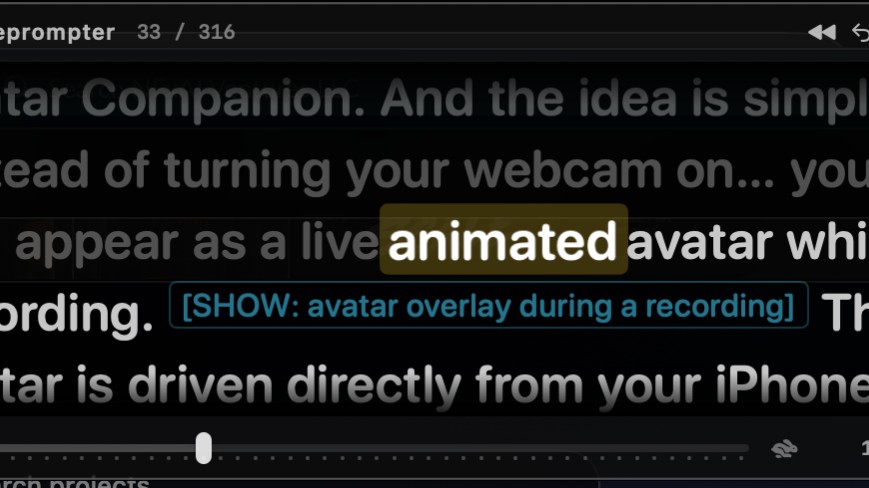
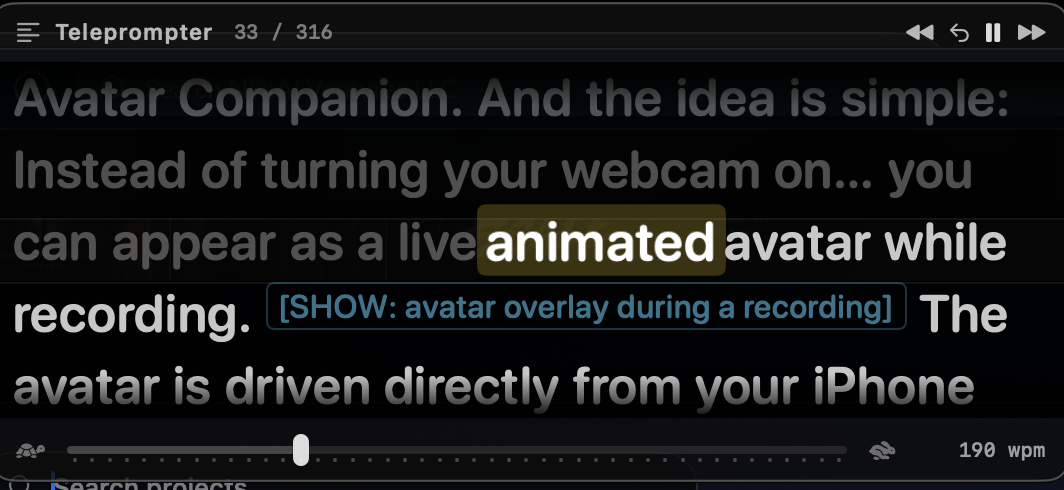
The new Teleprompter floats over your screen while you record. It karaoke-highlights one word at a time at a pace you choose, so you can read along naturally instead of memorising or improvising. The panel is invisible to the recording — what you ship is just you, sounding coherent on the first take.
Why we built it
Watch any indie creator's behind-the-scenes and you'll see the same pattern: 30 seconds of speaking, "ugh, again", restart. Repeat ten times. The video that ships looks effortless because the eleventh take finally clicked.
Memorising a script is hard. Improvising is harder. A teleprompter solves both — but every existing tool is either a separate app you have to alt-tab to, or a paid SaaS bolted onto a recording suite. So we built one inside Highlight Studio.
What it does
Karaoke word highlighting. The current word lights up bright with a soft yellow glow. Words behind you dim out. Words ahead glow a softer white so you can see what's coming next.
Auto-pacing. Set words-per-minute (default 150 — natural conversational pace). The highlight advances on its own at that rate. Drag the slider mid-recording to slow down or speed up.
Auto-centering. The current line stays in the middle of the panel. You don't have to track around — your eye stays on one spot.
Manual override. Pause, restart, step one word back or forward — buttons in the panel header for when you want to ad-lib for a moment, then jump back to the script.
On-screen cues. Wrap reminders to yourself in
[square brackets]— like[SHOW: cursor on the export button]. They show up inline as small cyan tags, but the karaoke pacing skips over them, so they don't throw your reading rhythm off.Invisible to the recording. The teleprompter window is excluded from screen capture at the system level. Record the whole display and the teleprompter still won't appear in the export.
[Insert: short demo of pasting a script, setting pace to 180 wpm, hitting record, then panel sliding in.]
How to use it
Open Highlight Studio → click New Recording.
In the recording sheet, scroll to the Teleprompter section on the right.
Switch Show During Recording on, and paste your script.
Pick a screen / window / iPhone source as usual and hit Start Recording.
The panel floats in at the top-center of your display. Read along.
Your script and pace are remembered between sessions, so the next time you open the recording sheet your last script is still there.
Real talk: it's a Beta
We're calling it a Beta on purpose. A few things to know:
Mac only for now. The panel only floats over the Mac display.
One script per project. No multi-script library or templates yet — paste, edit, paste again.
The pace is a guide. It's not synced to your actual speech via mic — it just runs at whatever WPM you set. Drag the slider live if you fall behind or get ahead.
If those bother you, tell us — we'll prioritise based on what people actually think.
Try it
If you have Highlight Studio installed, it's already there. Open the recording sheet, scroll to Teleprompter, paste a paragraph, hit record.
Help-center walkthrough with tips and the full bracket-cue syntax:
→ Read along while you record with the Teleprompter
Show us your one-take videos.
teleprompter · beta · recording · presenter