Guides
The Best macOS Screen Recorder in 2026: A Complete Guide
Looking for the best macOS screen recorder in 2026? Compare QuickTime, Highlight Studio, Loom, Screen Studio, CleanShot X, and OBS. Features, pricing, and which one fits your workflow.
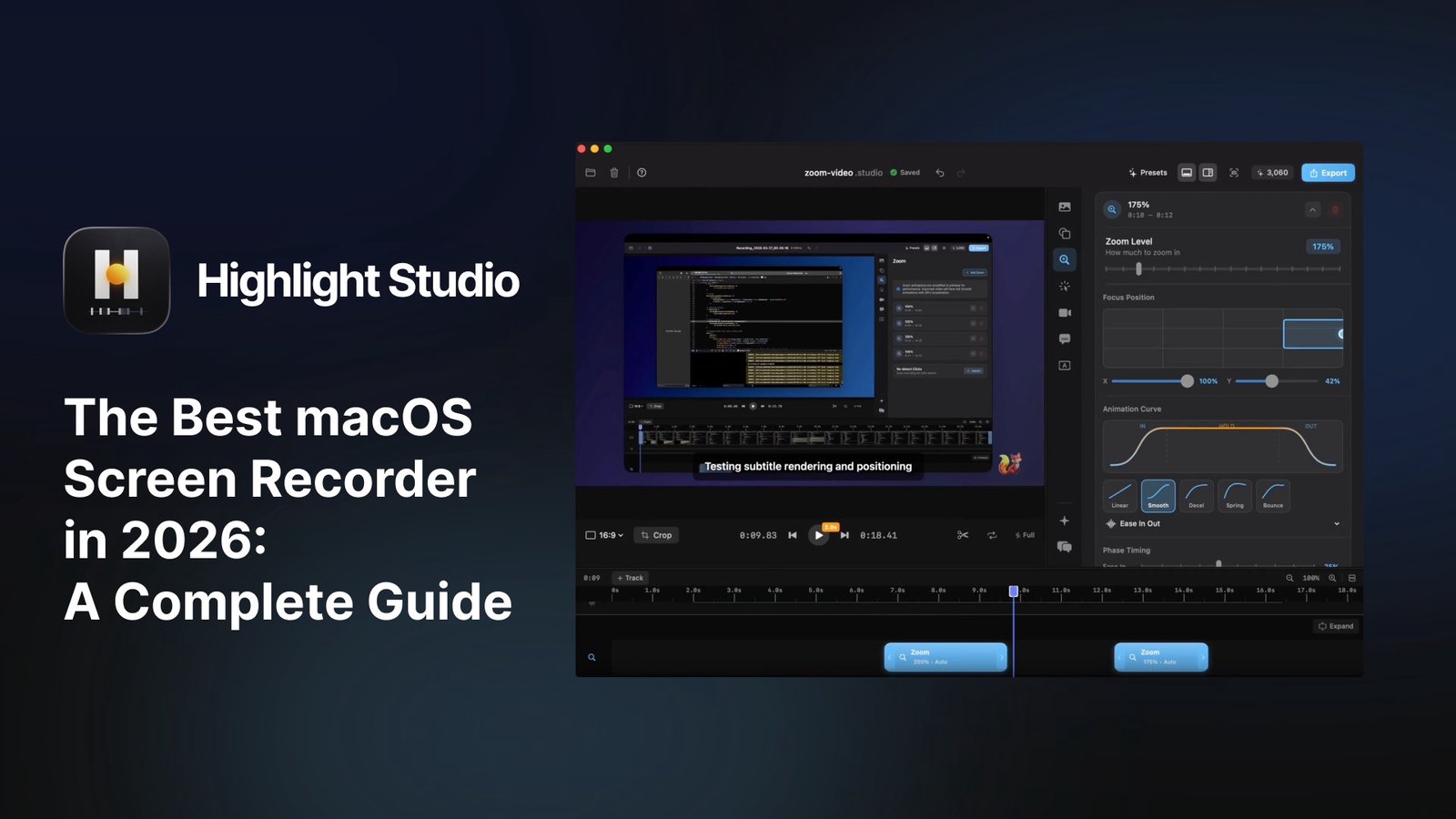
If you searched for a mac os screen recorder, you probably ran into one of these problems already. QuickTime exports a huge file with no editing tools. Loom is a web app that compresses your video. OBS has a learning curve like flying a plane. And most other options are subscription SaaS that ship as Electron wrappers eating your battery.
This guide breaks down what to look for in a macOS screen recorder in 2026, walks through the top options on the market, and explains which one fits which workflow. We will also cover how to start recording on macOS once you have picked a tool.
What to look for in a macOS screen recorder
Five things matter when you compare Mac screen recorders.
Native vs Electron. Native macOS apps built with SwiftUI use less memory, run cooler, and feel faster than Electron-based recorders that wrap a Chrome instance under the hood. If you have ever heard your fans spin up while recording, this is why.
Recording and editing in one app. Many tools only record. You then have to edit somewhere else, which means QuickTime to iMovie to GIF converter to Slack. The better recorders include a multi-track timeline so you do not have to leave the app.
Auto-zoom and cursor polish. A raw screen recording shows a tiny cursor and slow movement. Manual keyframing in Premiere fixes it but takes time. Recorders with AI auto-zoom add smooth cinematic zooms on your clicks automatically.
Device frames for iPhone and iPad. If you make demos of mobile apps, you want your iOS recording wrapped in a pixel-perfect mockup. Some recorders include this, most do not.
Export options. MP4 is standard, but GIF export with embed links matters if you share videos in bug reports or product docs. 4K export matters if you publish on YouTube or a marketing site.
QuickTime Player (free, built into macOS)
QuickTime ships with every Mac. Press Cmd-Shift-5 to bring up the screen capture toolbar. It records the full screen or a region, captures audio, and exports MOV files at native resolution.
What it does well: zero install, free, hardware-accelerated, works offline.
What it does not do: any editing beyond basic trim, cursor effects, zoom animations, device frames, subtitles, GIF export. The output file is large and unoptimized.
QuickTime is fine for send-a-quick-clip use cases. It is not enough for product demos, tutorials, or anything that needs polish.
Highlight Studio (best paid macOS screen recorder)
Highlight Studio is a native macOS app built with SwiftUI and Apple's Metal framework. It records your screen, camera, and audio, then runs an AI pass that auto-zooms into your clicks, smooths cursor jitter, generates subtitles, and suggests cuts based on facial expressions.
Core features:
AI smart zoom that watches your click clusters and adds GPU-accelerated zoom animations automatically
Multi-track timeline with separate tracks for video, camera, audio, voice-overs, subtitles, and annotations
27+ Apple device frames with accurate bezels, Dynamic Island, and real finish colors
3-level cursor smoothing, post-recording cursor resize, click sounds, and ripple highlights
Brand kit with logo, watermark, presenter label, and six animated intro and outro templates
AI transcription with word-level timestamps in 50+ languages, SRT export included
Built-in royalty-free music library and wallpapers
GIF export with permanent embed URLs you can drop in Slack, Notion, Linear, GitHub
CLI with 40+ commands for AI agents like Claude Code
Under 100 MB install, under 2% CPU during recording
Pricing: Free tier with 720p watermarked export. Pro at $50 per year. Lifetime at $79.99 once (currently 42% off from $139).
Best for: indie developers, SaaS founders, course creators, designers, product managers, and anyone who needs polished screen recordings without leaving the recorder to edit them.
Download: highlightstudio.app
Loom
Loom is a cloud screen recorder mostly used for async work communication. You record, the video uploads to Loom's servers, and you share a link.
Pros: instant link sharing, viewer analytics, works on macOS and Windows, decent free tier for short clips.
Cons: Electron-based, recordings are compressed for web delivery, no real editing, requires an account, free tier limits recording length and storage.
Best for: async team updates and customer support videos. Not the right tool for polished marketing content or tutorials.
Screen Studio
Screen Studio is another native Mac screen recorder with auto-zoom features. It was one of the first to popularize automatic cursor zoom on macOS.
Pros: native macOS, smooth animations, clean output.
Cons: subscription only, no lifetime option, fewer device frames, no multi-track editor.
Best for: creators who want auto-zoom and do not need a full editor.
CleanShot X
CleanShot X is a Mac screen-capture utility focused on screenshots with screen recording included.
Pros: excellent annotation tools, fast capture workflow, great for static images.
Cons: limited video editing, no AI zoom, no device frames, recording is a secondary feature.
Best for: people who screenshot more than they record video.
OBS Studio
OBS is the free, open-source standard for streamers and advanced users.
Pros: completely free, extremely powerful, multi-source compositing, scene switching.
Cons: steep learning curve, no built-in editor, exports usually need post-processing, interface is not friendly for casual users.
Best for: live streaming and complex broadcast setups. Overkill for most screen recording needs.
How to record your screen on macOS
For the built-in macOS option:
Press Cmd-Shift-5 on your keyboard
Choose Record Entire Screen or Record Selected Portion from the toolbar
Click Options to set the microphone source and save location
Click Record
Click the stop icon in the menu bar when you are finished
For Highlight Studio:
Open Highlight Studio
Choose your source: screen, window, or a connected iPhone or iPad
Toggle camera and microphone if you want them on
Click record
Hit stop; the recording opens in the multi-track editor automatically
Frequently asked questions
What is the best free macOS screen recorder?
QuickTime Player is the best truly free option because it ships with macOS, has zero install friction, and uses hardware encoding. For more features without paying, Highlight Studio has a free tier that includes recording, basic editing, and 720p export with a watermark.
Can I record internal Mac audio?
Yes. macOS supports internal audio capture through tools like BlackHole or Loopback. Most dedicated screen recorders, including Highlight Studio, handle internal audio routing natively without extra setup.
How do I record my iPhone screen on a Mac?
Connect your iPhone to your Mac via USB and use QuickTime (File > New Movie Recording, then select your iPhone as the source) for a raw recording. For a polished version with a device frame, Highlight Studio captures the iPhone screen directly and wraps it in a pixel-perfect mockup of any of 27+ Apple device models.
What is the best macOS screen recorder for tutorials?
Highlight Studio. The combination of AI auto-zoom on clicks, AI-generated subtitles, cursor smoothing, and a multi-track timeline makes it the most efficient option for producing tutorial content without bouncing between apps.
Is there a one-time payment Mac screen recorder?
Highlight Studio offers a $79.99 lifetime license (currently discounted from $139). Most other paid options are subscription-only. QuickTime and OBS are free.
Does macOS Sonoma or Sequoia have a built-in screen recorder?
Yes. Press Cmd-Shift-5 to bring up the built-in screen capture toolbar. It works on macOS Mojave and later, including Sonoma, Sequoia, and the current macOS version.
Our pick
For free, casual recording: QuickTime is already on your Mac. Use it for quick one-off clips.
For anything you plan to share publicly: Highlight Studio. The lifetime deal at $79.99 works out cheaper than two years of any subscription competitor, and it is the only native Mac option that bundles AI auto-zoom, multi-track editing, device frames, and GIF embed links in one app.
If you only need to send async team updates: Loom is built for that and has the link-sharing flow dialed in.
If you stream or run a complex broadcast setup: OBS, every time.
For everyone else searching for a mac os screen recorder, the answer in 2026 is Highlight Studio.